6.2. Gmail
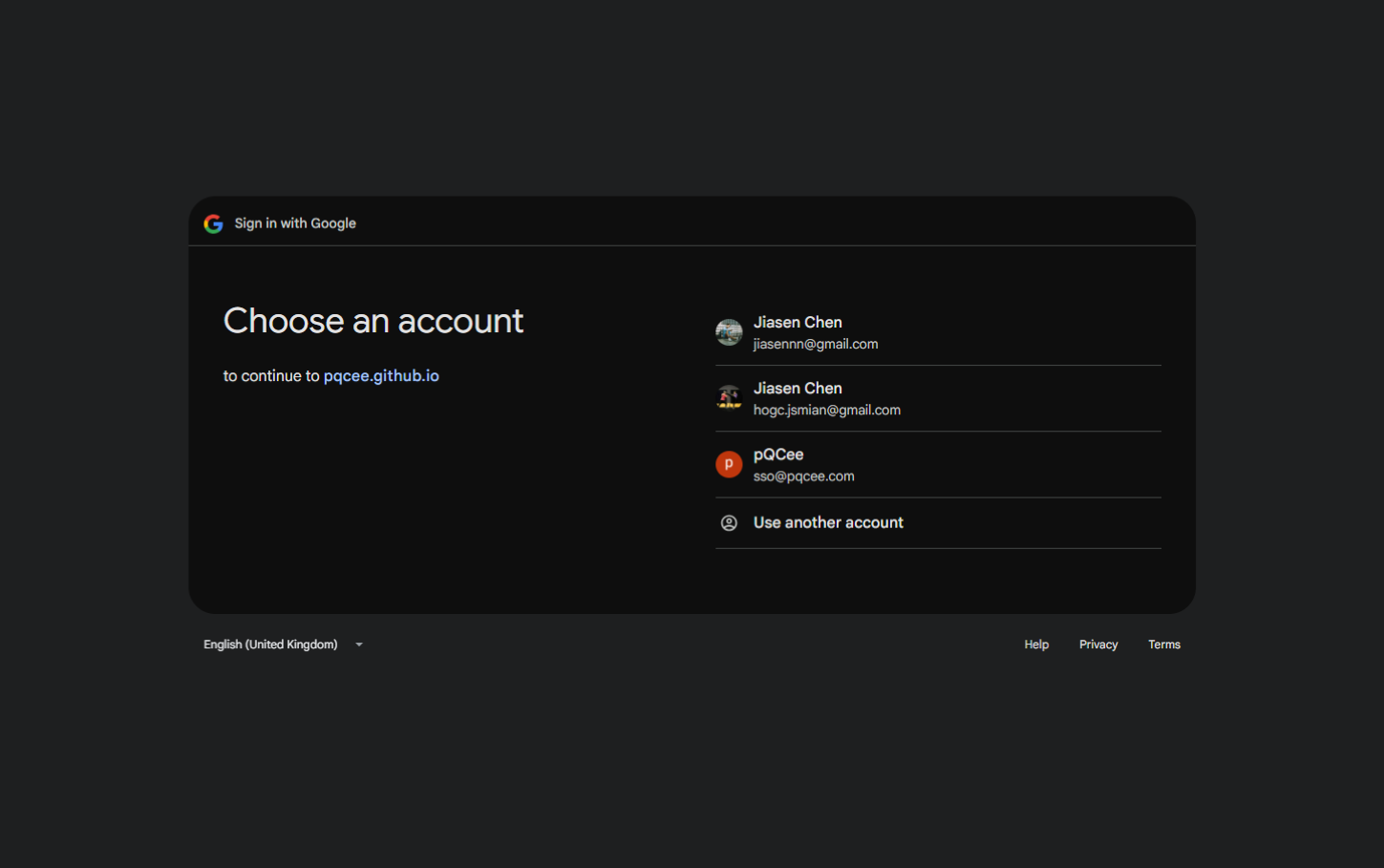
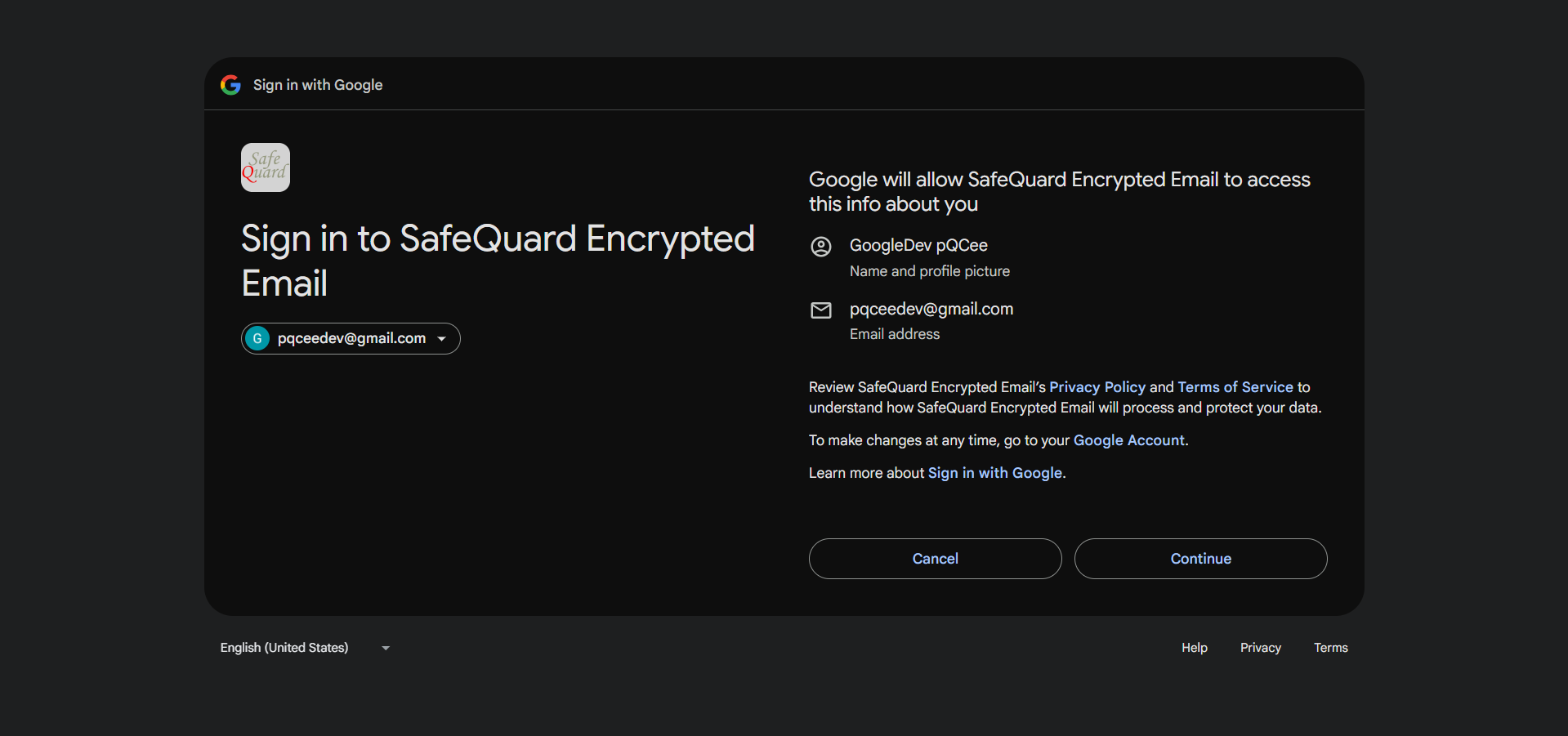
6.2.1. Google Authentication and Permissions.
Tip
Permissions consent will be requested for first time user.
Caution
(REQUIRED) Select all to allow permissions for viewing of email content (decryption) and sending of email (encryption).
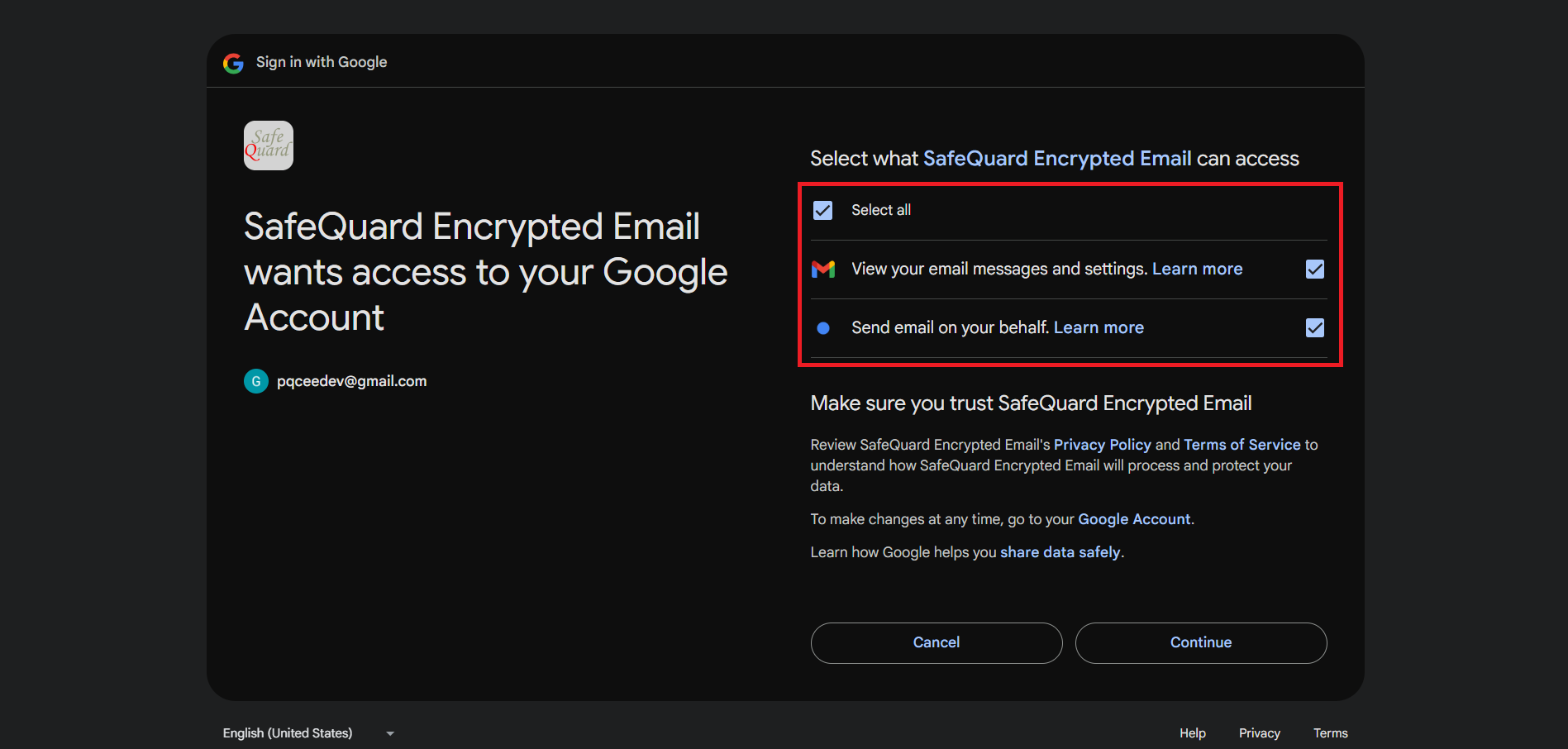
To completely remove the ProgressiveWebApp permissions for Gmail, refer to the Google Help Center.
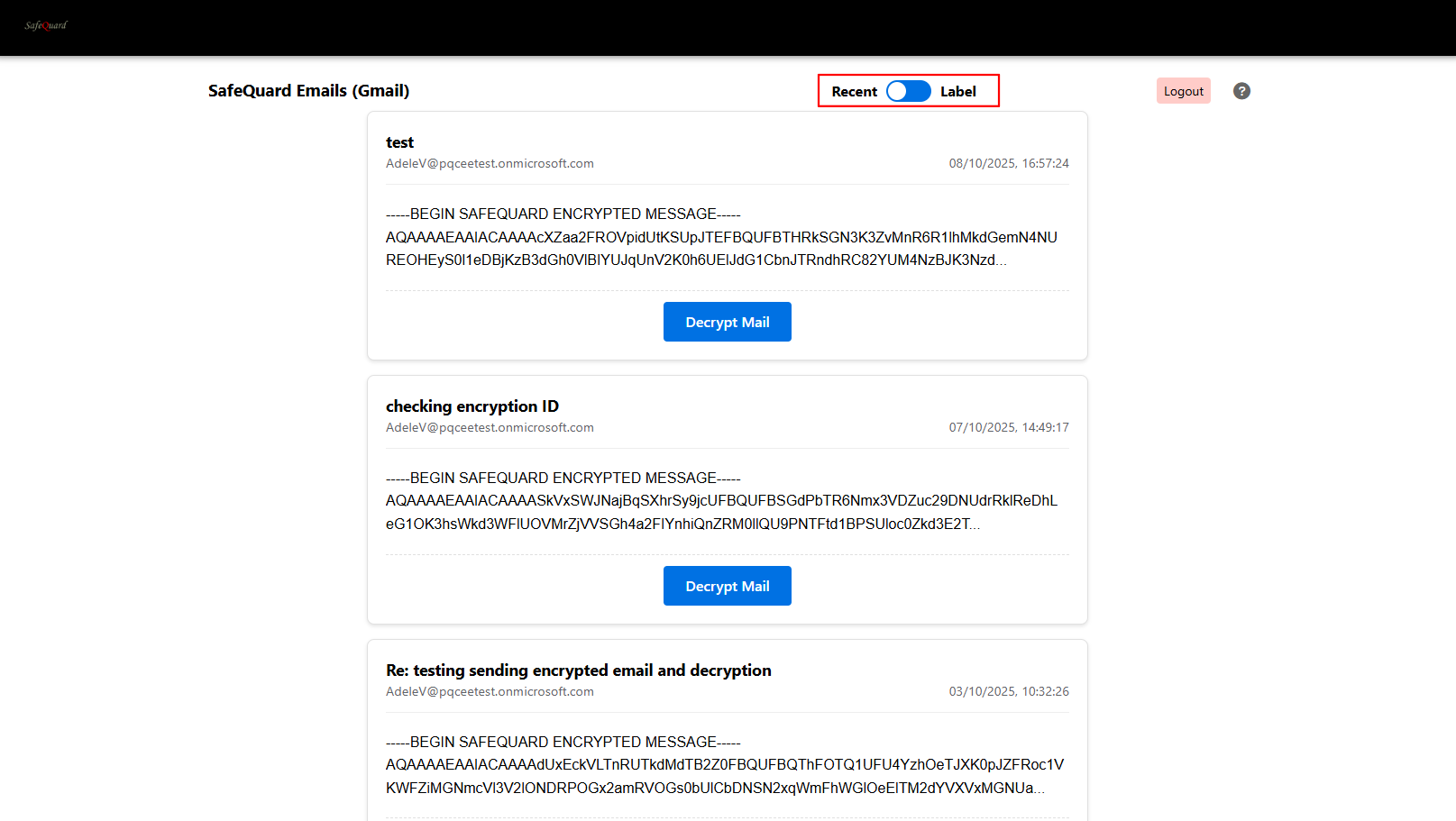
6.2.2. Dropdown filtering of SafeQuard encrypted emails (Time)
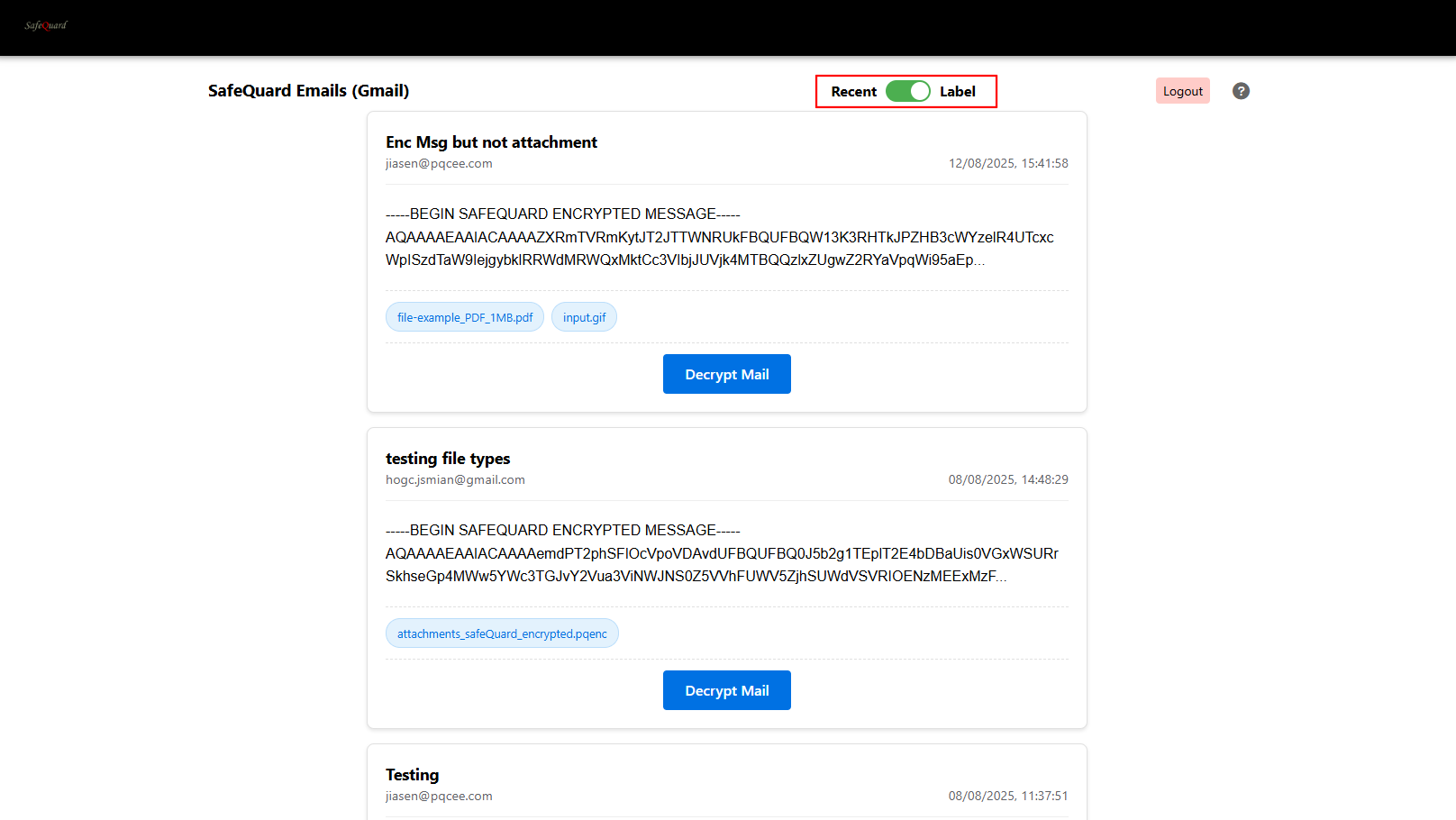
6.2.3. Select “By Label” to view labelled emails
Refer to Add Gmail Label section below to select specific emails to decrypt.
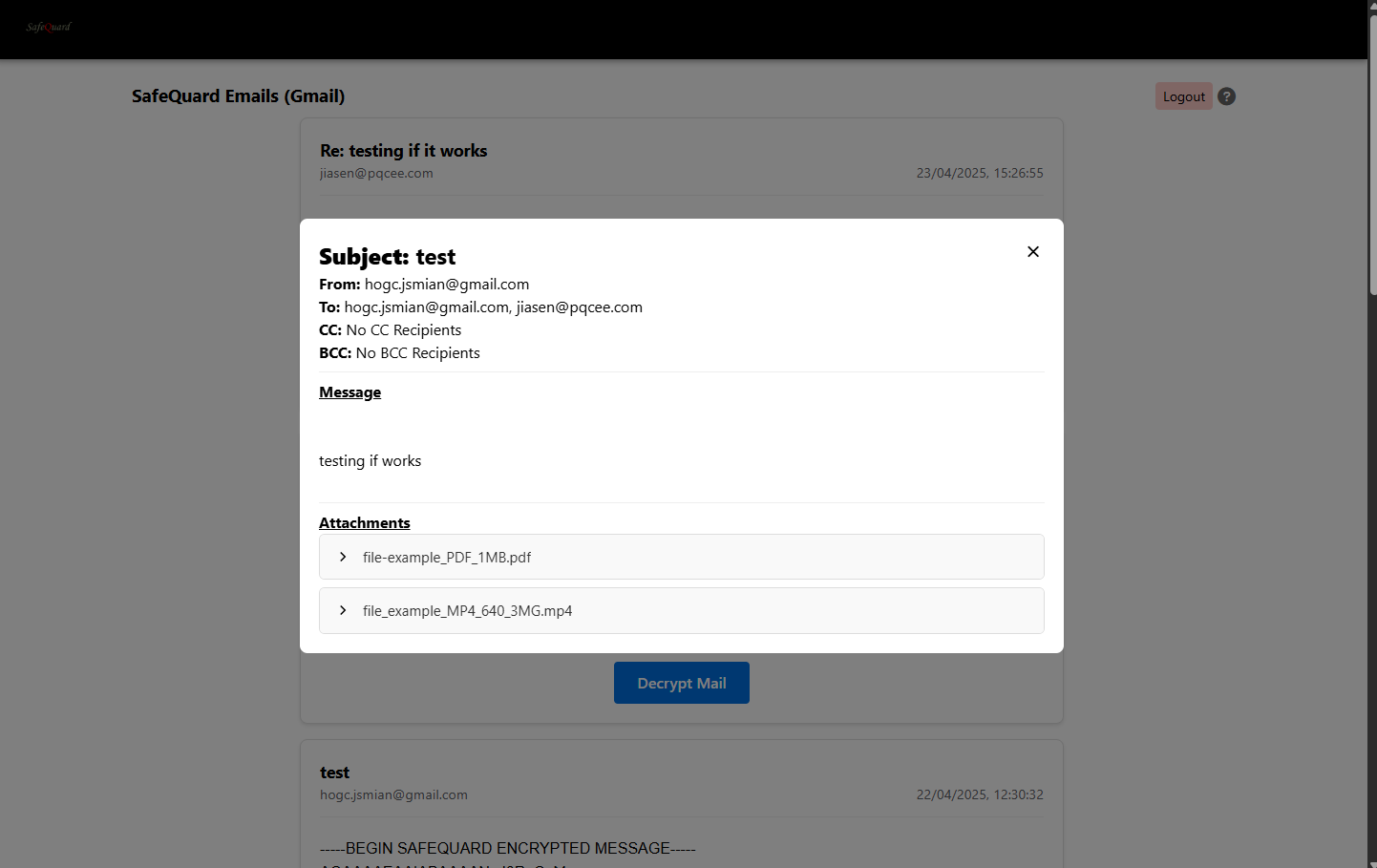
6.2.4. Decrypt and View Email
Click on the “Decrypt Mail” button to view email content.
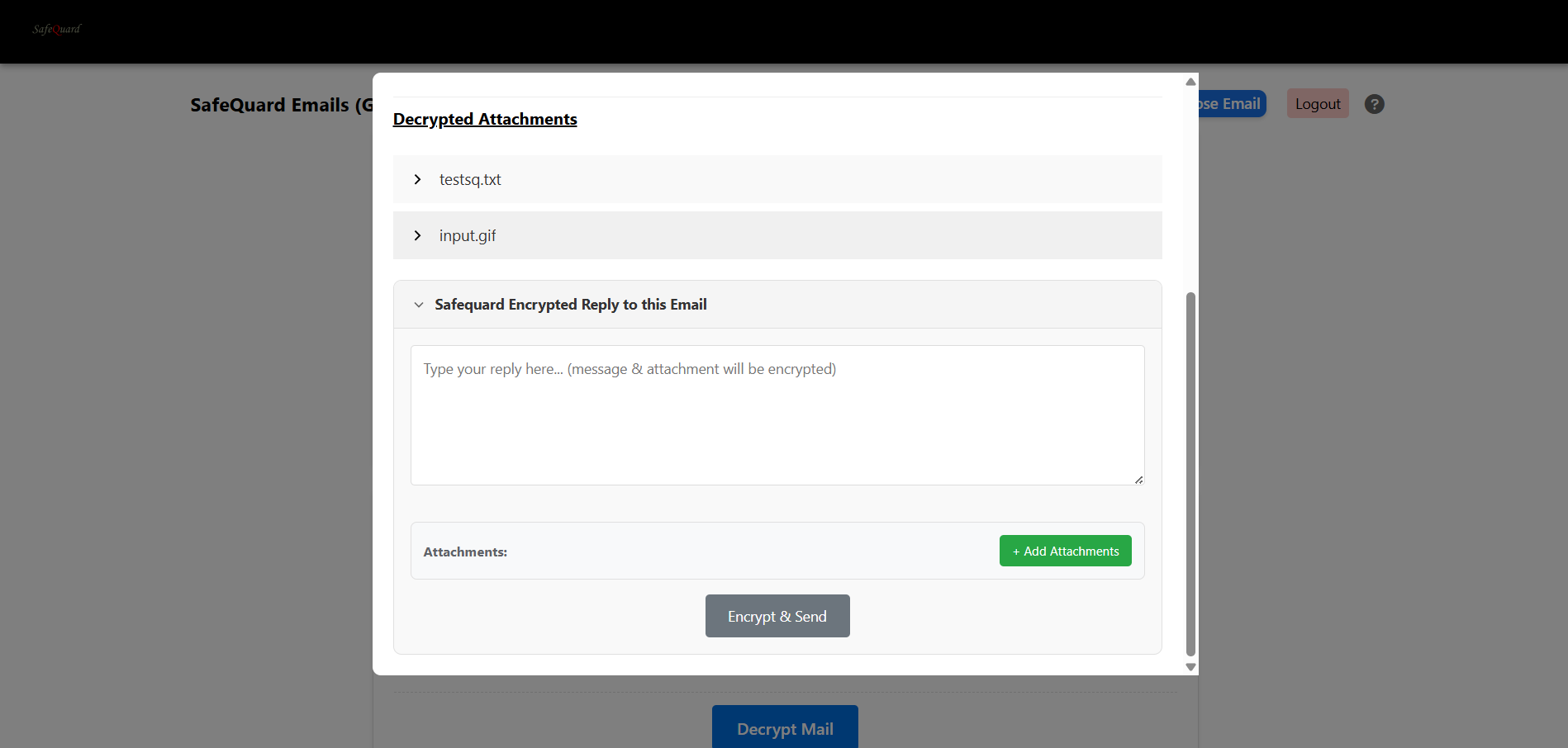
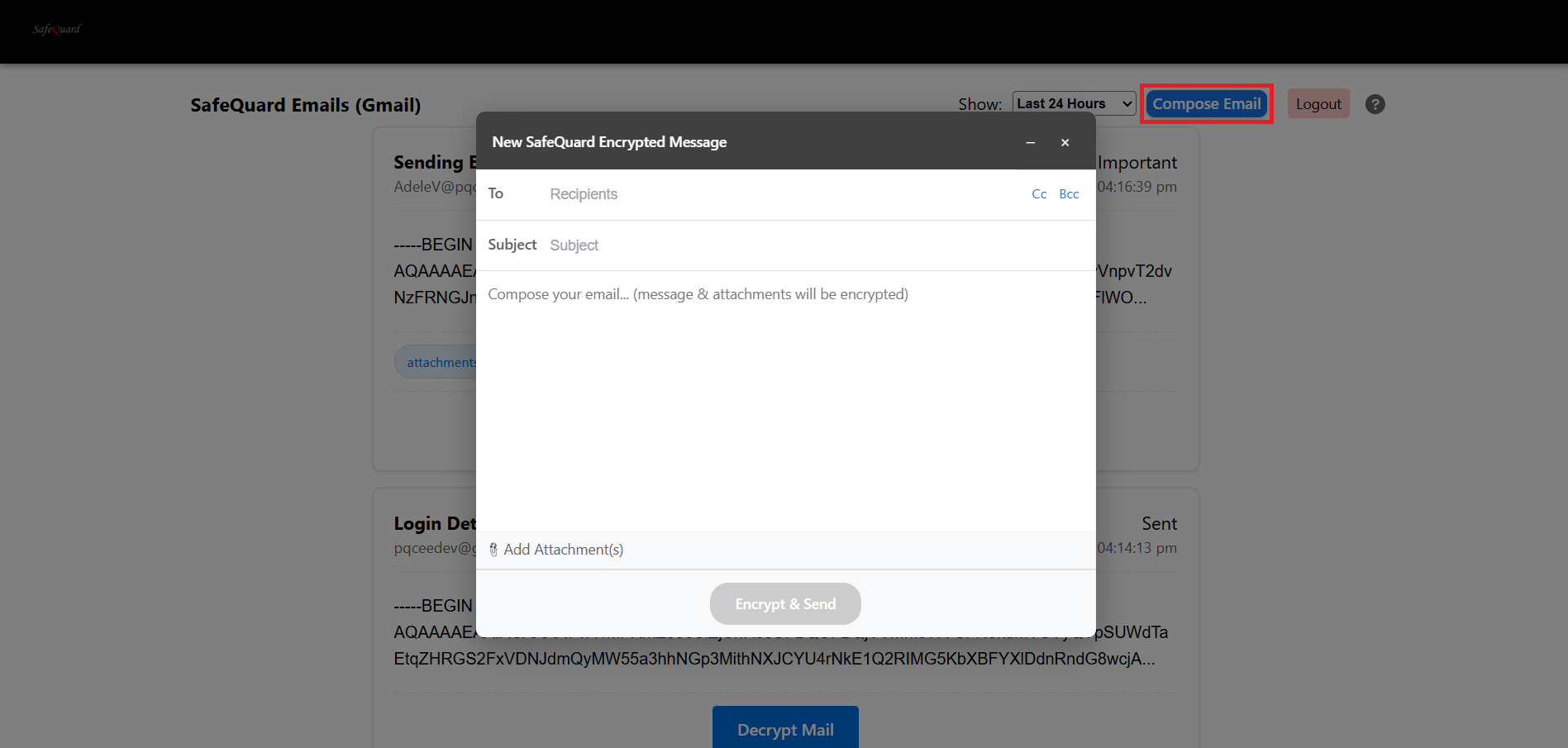
6.2.6. Compose New Encrypted Email
Click on the “Compose Now” button at the top right corner. (If it’s grey out, sent permissions is not given)
6.2.7. Filtering Specific Emails
Do the following for your account to filter the emails to be decrypted in the WepApp.
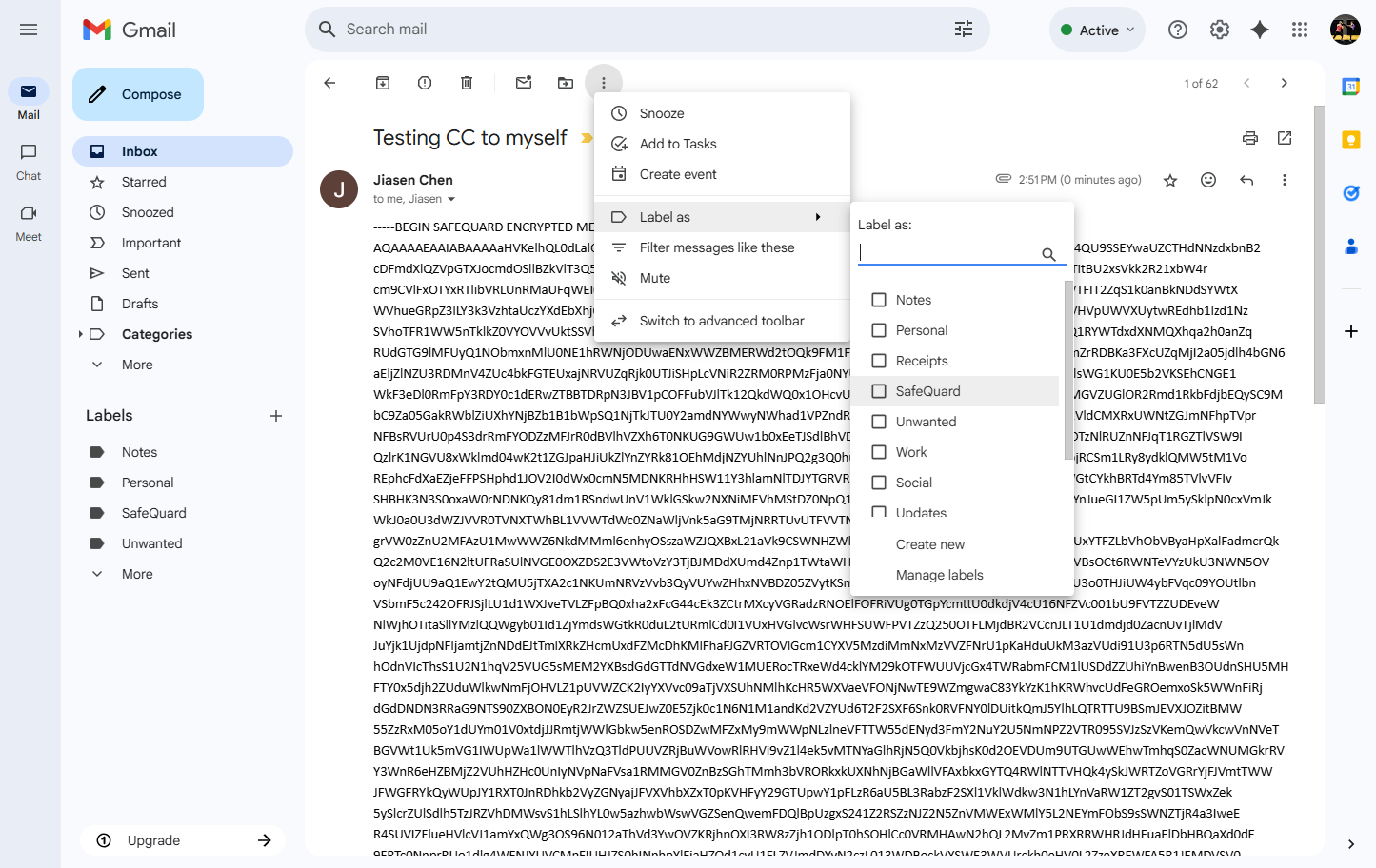
6.2.7.1. Add Gmail Label
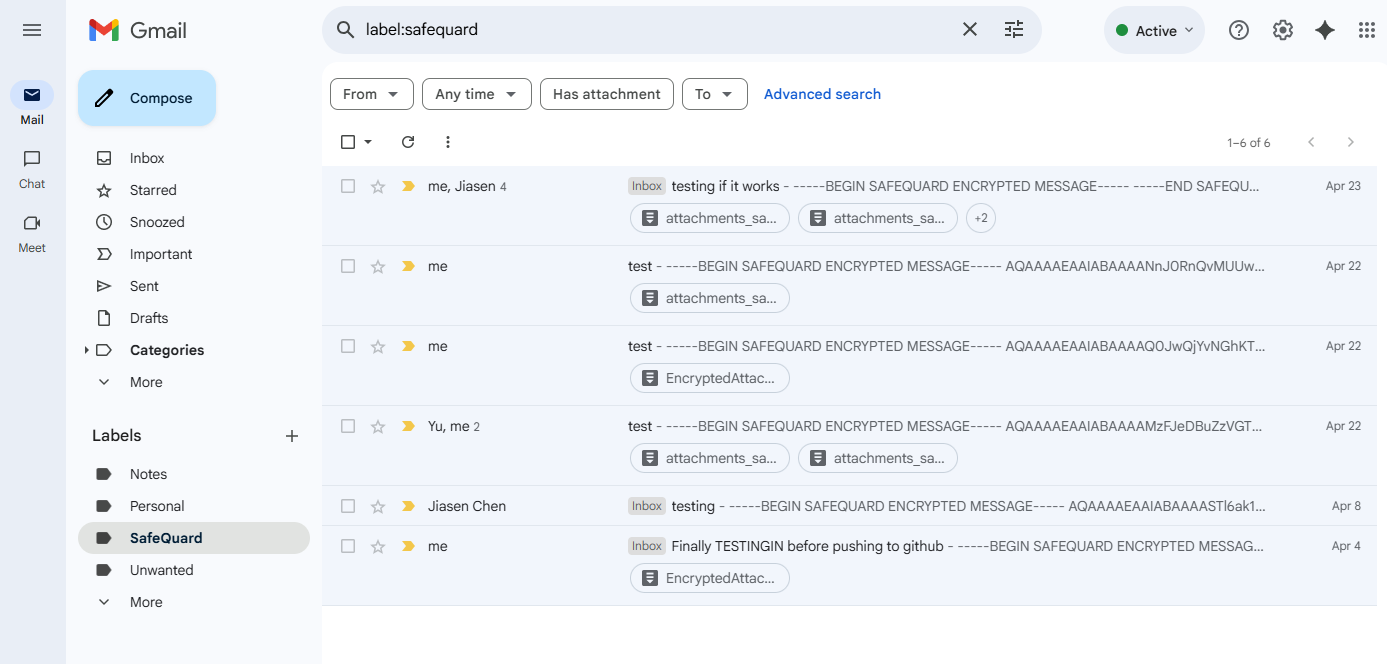
Create a label in your Gmail account named “SafeQuard” and assign it to the emails you want to decrypt in the WebApp.