Security Analysis With PacketQC
This section provides a step-by-step walkthrough on how to access PacketQC and perform a security assessment using the application. For a complete understanding of the process, we recommend following each section in sequence, from accessing PacketQC to generating a security report.
Step 1: Begin Your Network Analysis
To begin using PacketQC, you will need a PCAP or PCAPNG file, which can be obtained using tools such as Wireshark or from an existing capture. Refer to Capturing network traffic in pcap/pcapng for instructions on capturing network traffic.
Once uploaded, PacketQC allows you to explore discovered network connections and examine the cryptographic mechanisms used in your network communications.
Follow the steps below to start your network analysis.
Access PacketQC:
Access PacketQC through any web browser at http://localhost:80 if installed locally.
Or visit our public demo at https://www.packetqc.com to explore the application online.
Log in to your PacketQC account: Click LOGIN at the top right to log in to PacketQC. New users can register an account or contact info@pqcee.com for assistance.
Access network analysis page: Once logged in, click NETWORK VIEW ① from the navigation bar at the top of the application.
Upload PCAP:
Click ADD PCAP ② to upload your network traffic file.
Select a PCAP or PCAPNG file from your device.
Wait for PacketQC to complete the analysis.
Review network analysis: Review the results ③ displayed in NETWORK VIEW.
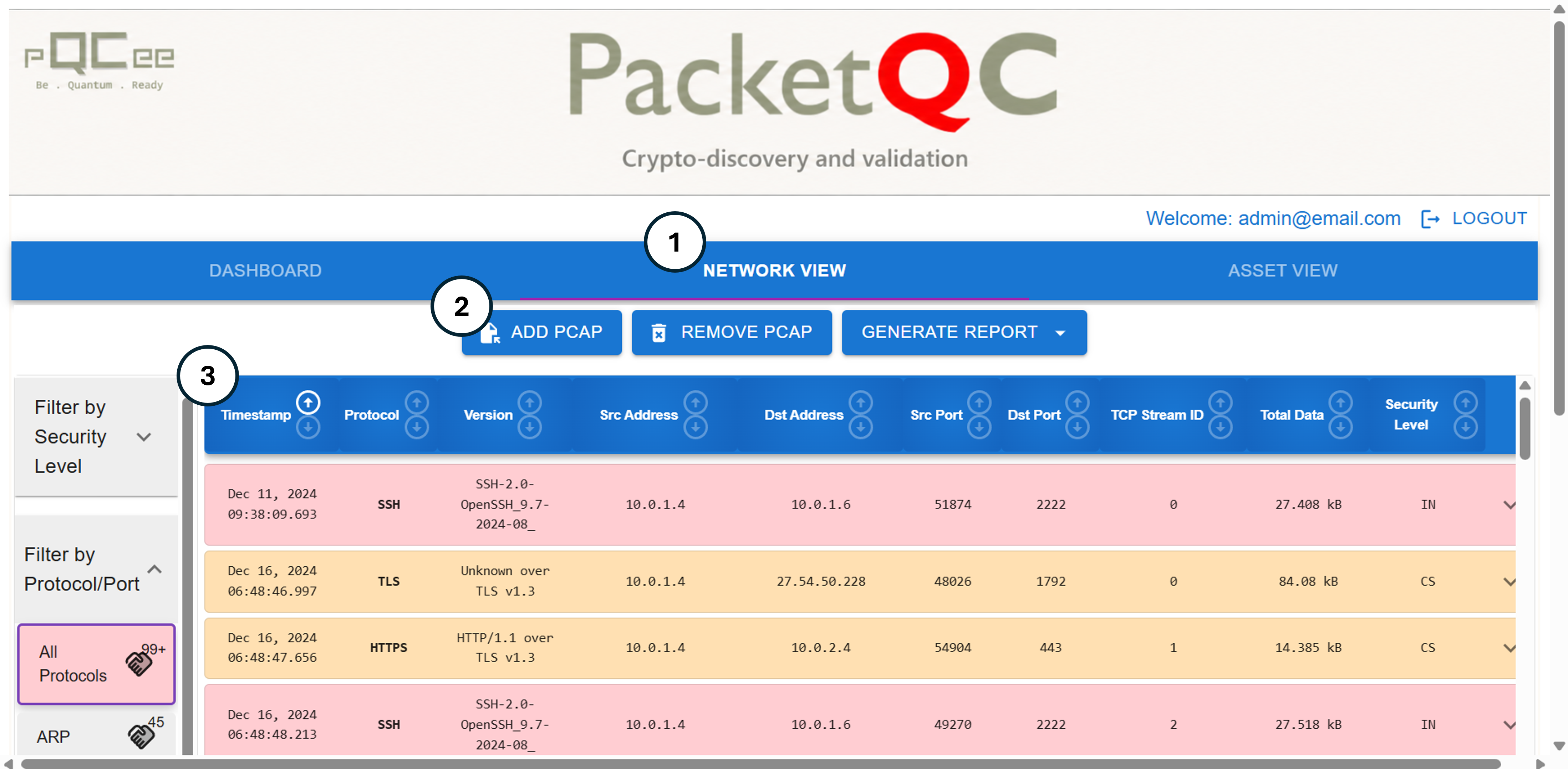
Fig. 3 PacketQC Network View, with numbered references to the instructions above.
Step 2: Cryptographic Discovery
After analysing the uploaded PCAP or PCAPNG file, PacketQC displays the discovered network connections in the NETWORK VIEW.
Explore the discovered network connections to identify where cryptographic mechanisms are used and understand how they protect network communications.
Follow the steps below to explore discovered connections.
Review network analysis: In NETWORK VIEW, review the list of discovered network connections ①.
Examine cryptographic information:
Click the dropdown arrow ② beside any connection to view its details.
Examine the cryptographic information ③ displayed, such as the encryption algorithms and key exchange mechanisms used.
Filter connections: Use Filter by Protocol/Port ④ to narrow the results to specific protocols or ports.
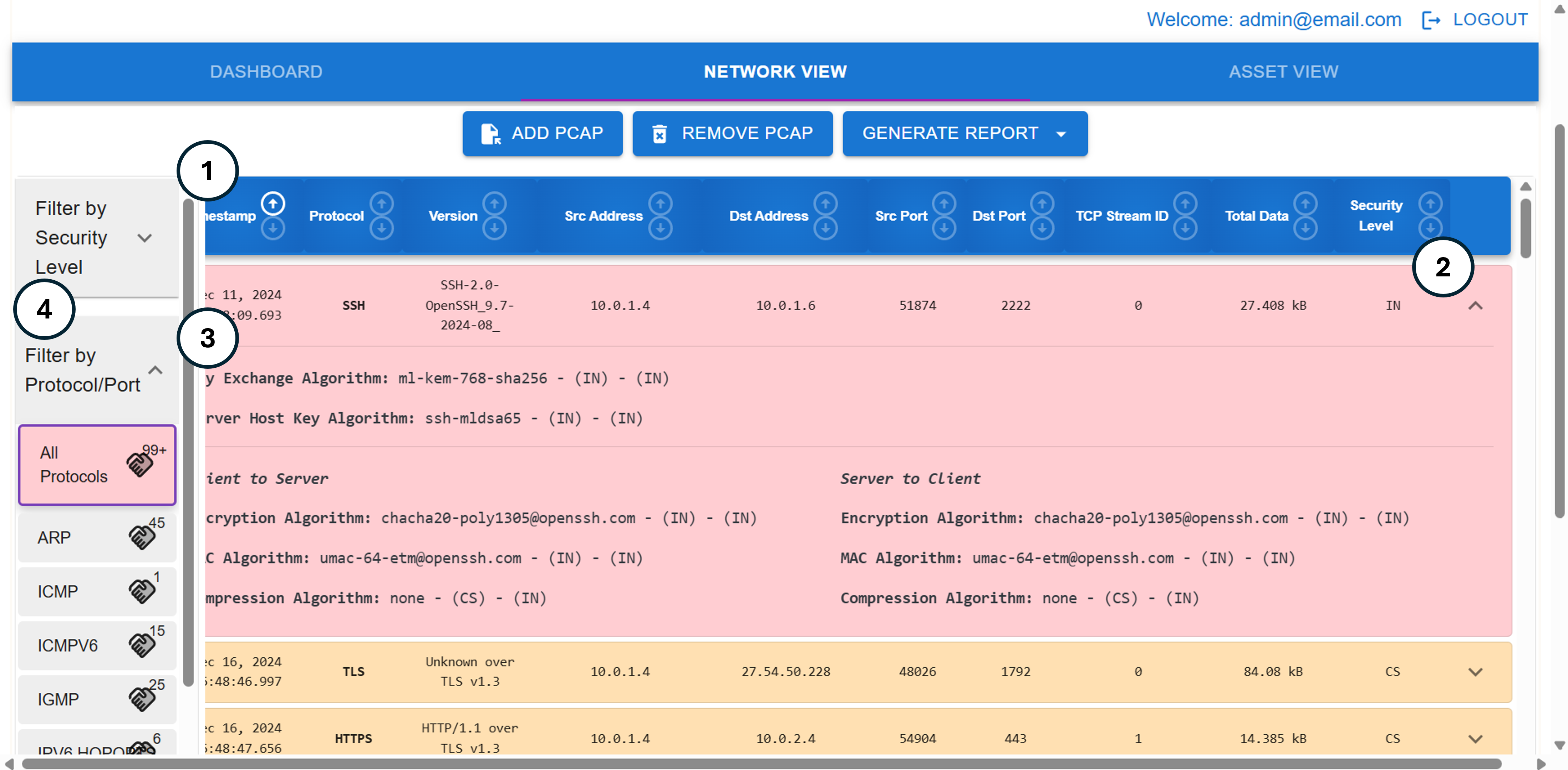
Fig. 4 PacketQC Network View, with numbered references to the instructions above.
Step 3: Asset Management
PacketQC maintains an inventory of network assets identified during network analysis. Assets that were not discovered through network analysis can be manually added.
Through Asset View, users can review and manage their assets, add new assets, and upload CBOMs to evaluate the cryptographic security of each asset.
Follow the steps below to manage your assets.
Access Asset View: Click ASSET VIEW ① from the navigation bar at the top of the application.
View and edit assets: Click the eye icon ② beside an asset to view its details, or the pencil icon ③ to edit its information. You can also use either icon to upload a CBOM to the asset.
Manually add assets: To add an asset manually, click ADD ASSET ④, complete the required information, and click CREATE ASSET.
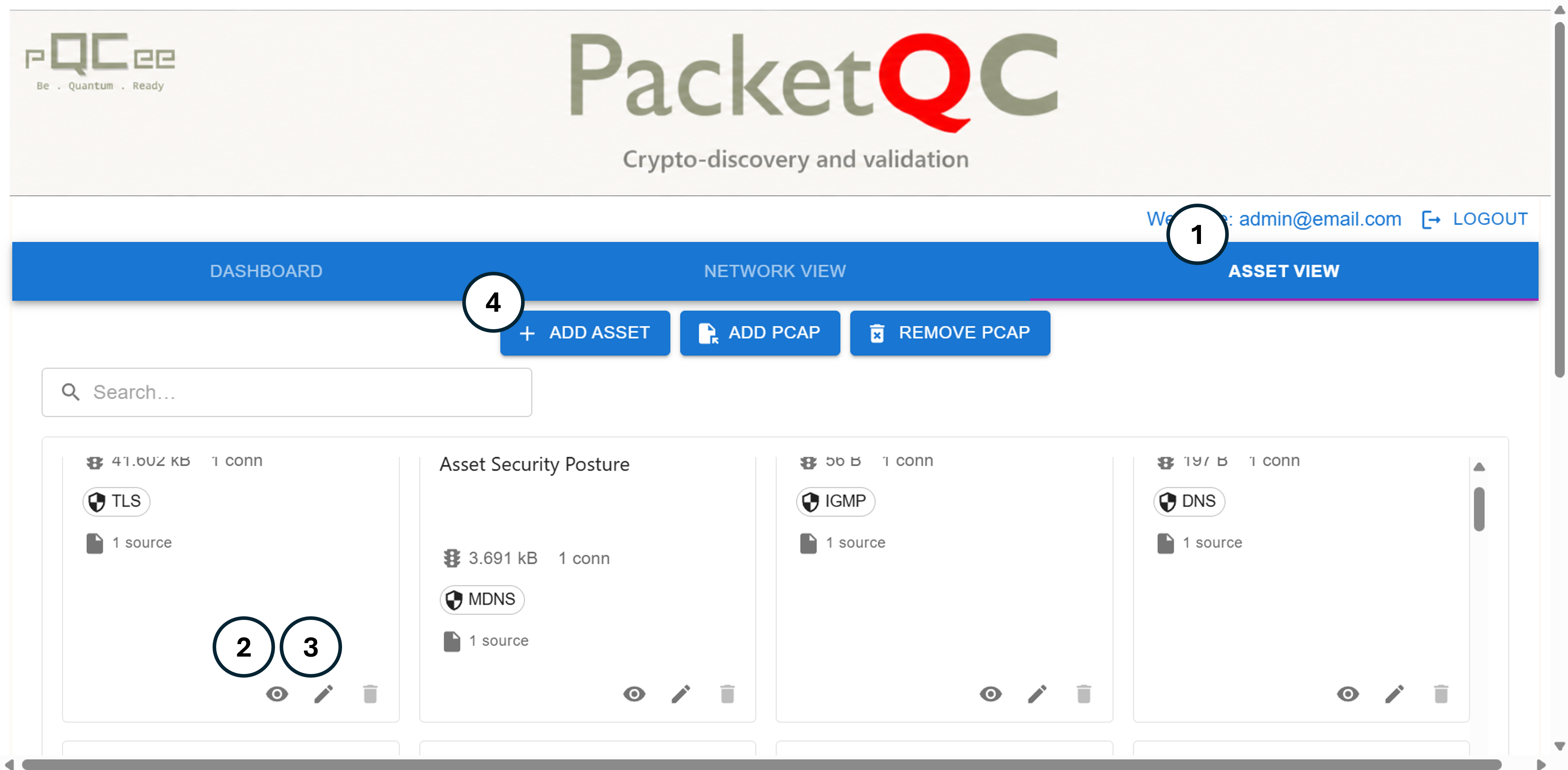
Fig. 5 PacketQC Asset View, with numbered references to the instructions above.
Step 4: Security Assessment
PacketQC evaluates cryptographic mechanisms identified from network traffic and uploaded CBOMs against configured security policies to assess their security.
Users can review the assessment results to understand the security of their network connections and assets, and identify areas that require further attention.
Follow the steps below to review your security assessments.
View overall security: Navigate to DASHBOARD ① to review the overall security assessment results.
Review Security Assessment Results: In NETWORK VIEW ②, examine the Security Level ③ assigned to each connection:
QS (Quantum Secure): Secure against classical and quantum threats.
CS (Classically Secure): Secure against classical threats, but not quantum threats.
IN (Insecure): Does not meet the configured security requirements.
UC (Unclassified): Insufficient information to determine its security classification.
Identify potential vulnerabilities: Use Filter by Security Level ④ to display connections with specific security levels.
Review asset security: Navigate to ASSET VIEW ⑤ and examine the security assessment results of uploaded asset CBOMs.
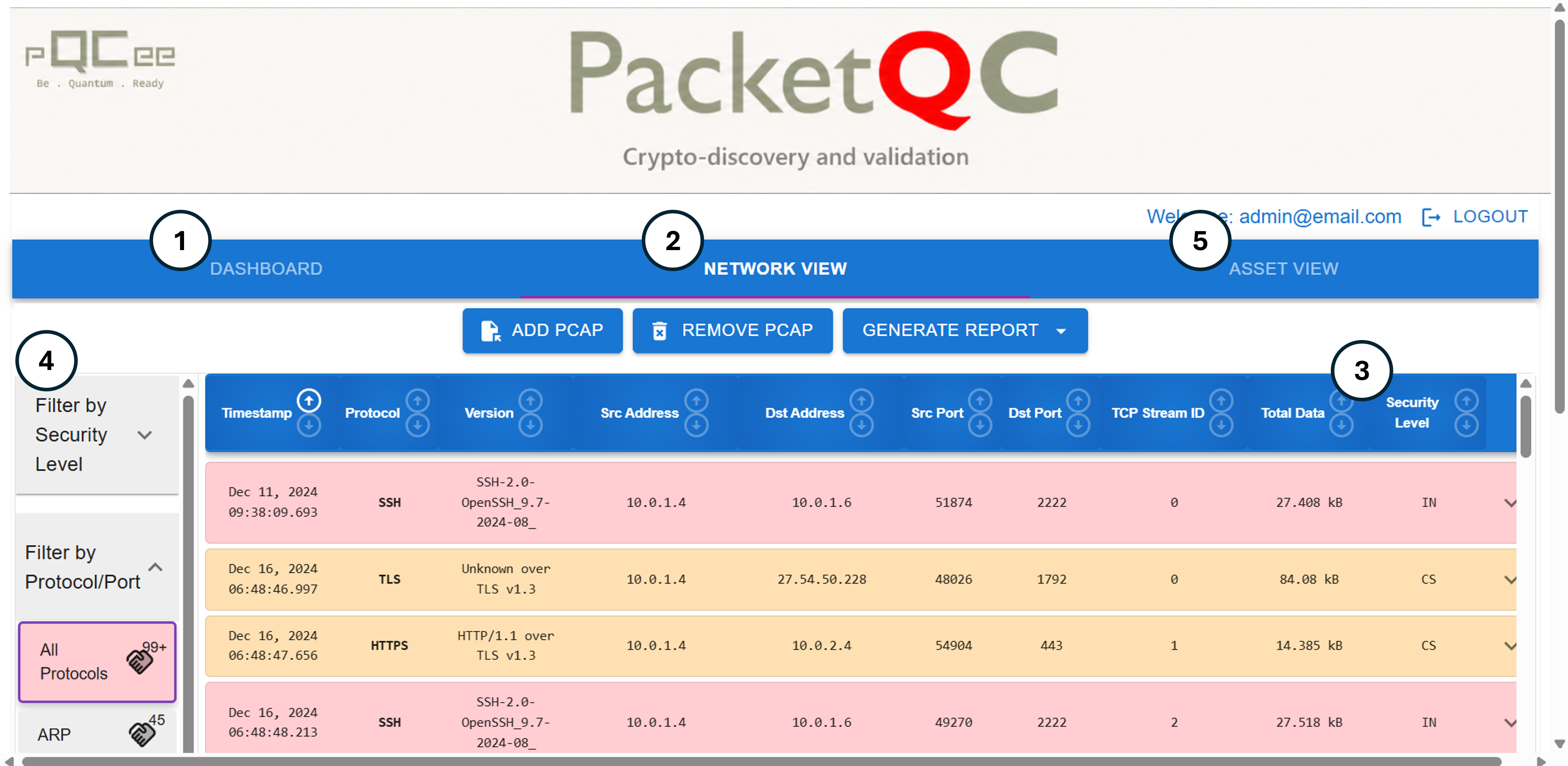
Fig. 6 PacketQC Network View, with numbered references to the instructions above.
Step 5: Reporting
Security reports provide a consolidated record of PacketQC’s cryptographic security assessments, supporting documentation, review, and further investigation.
Users can download interactive security reports and generated CBOMs to review security levels, and examine detailed findings for network connections and managed assets.
Follow the steps below to generate a security report.
Generate Report: Once the network analysis is complete, click GENERATE REPORT ①.
Download Vulnerability Report: Click Interactive Report to download the HTML version, or Printed Report to download the PDF version.
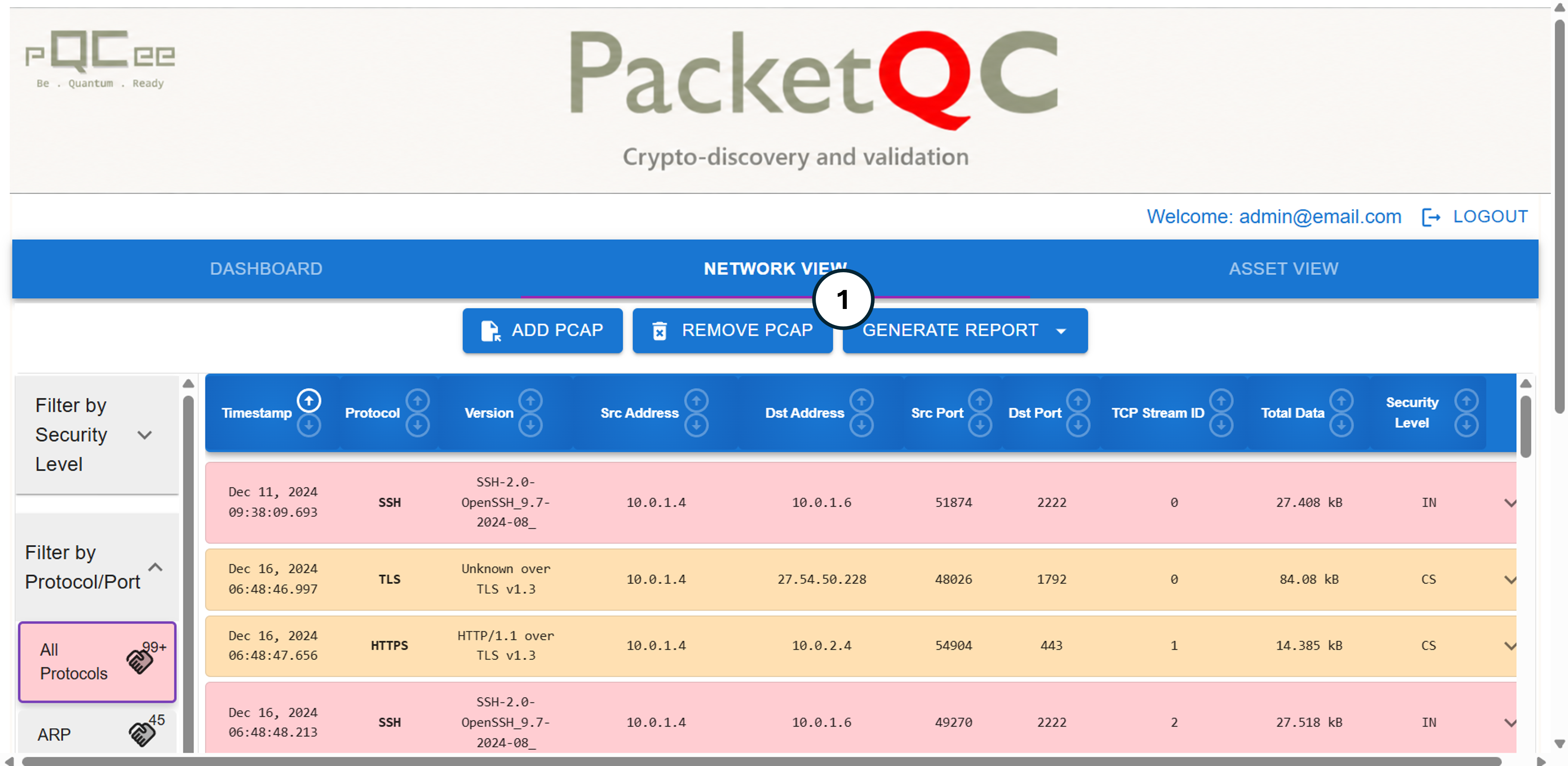
Fig. 7 PacketQC Network View, with numbered references to the instructions above.
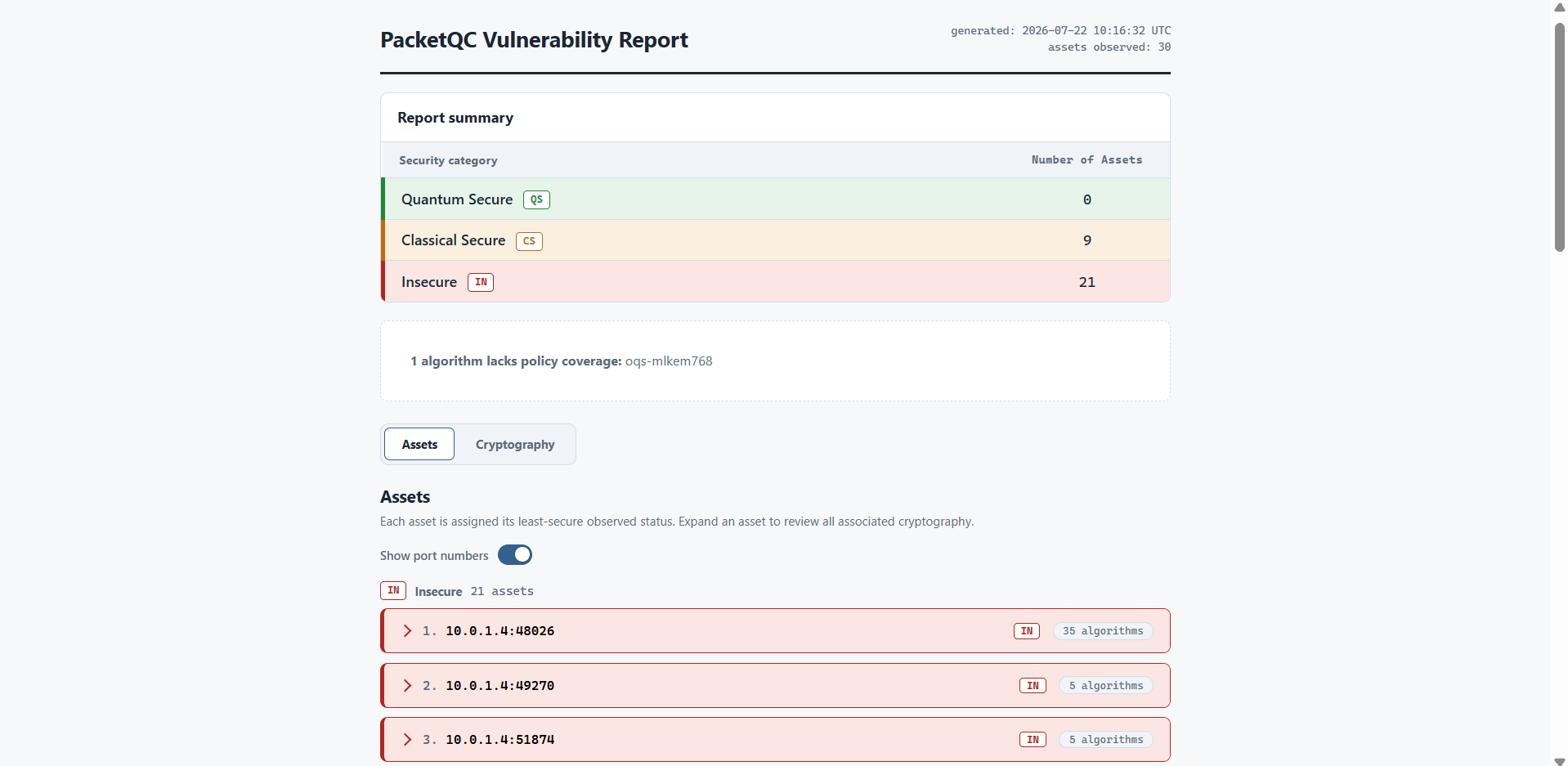
Fig. 8 Sample Vulnerability Report