Capturing network traffic in pcap/pcapng
The following are some common methods for capturing network traffic in PCAP or PCAPNG format.
Wireshark: Capture network traffic in pcap format
Wireshark provides a convenient way to capture network traffic and export it in PCAP format for further analysis.
To capture network traffic in PCAP using Wireshark:
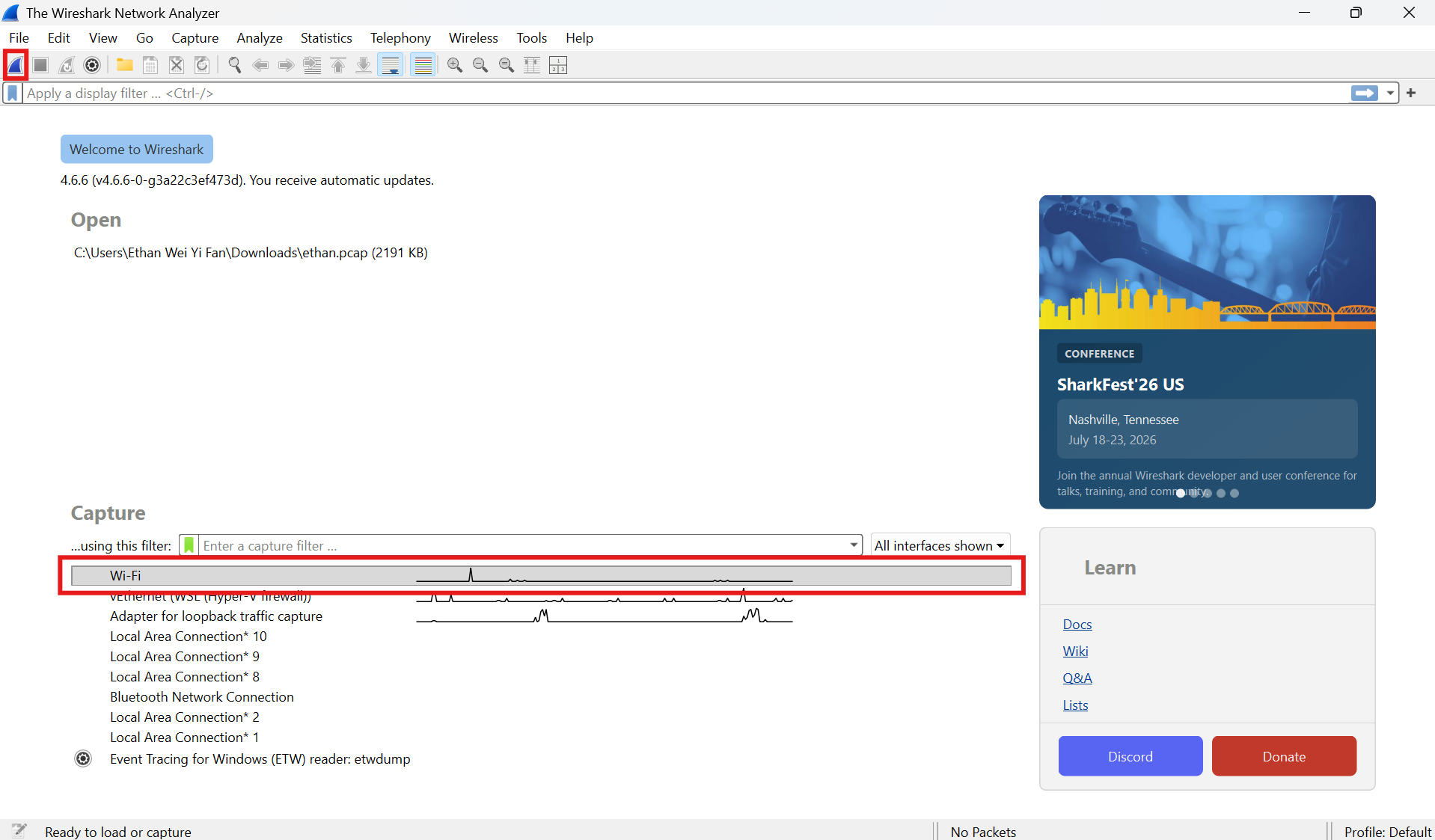
Identify the network interface card (NIC) on which network traffic will be captured. Select it and click the fin icon on the top left to start packet capture.
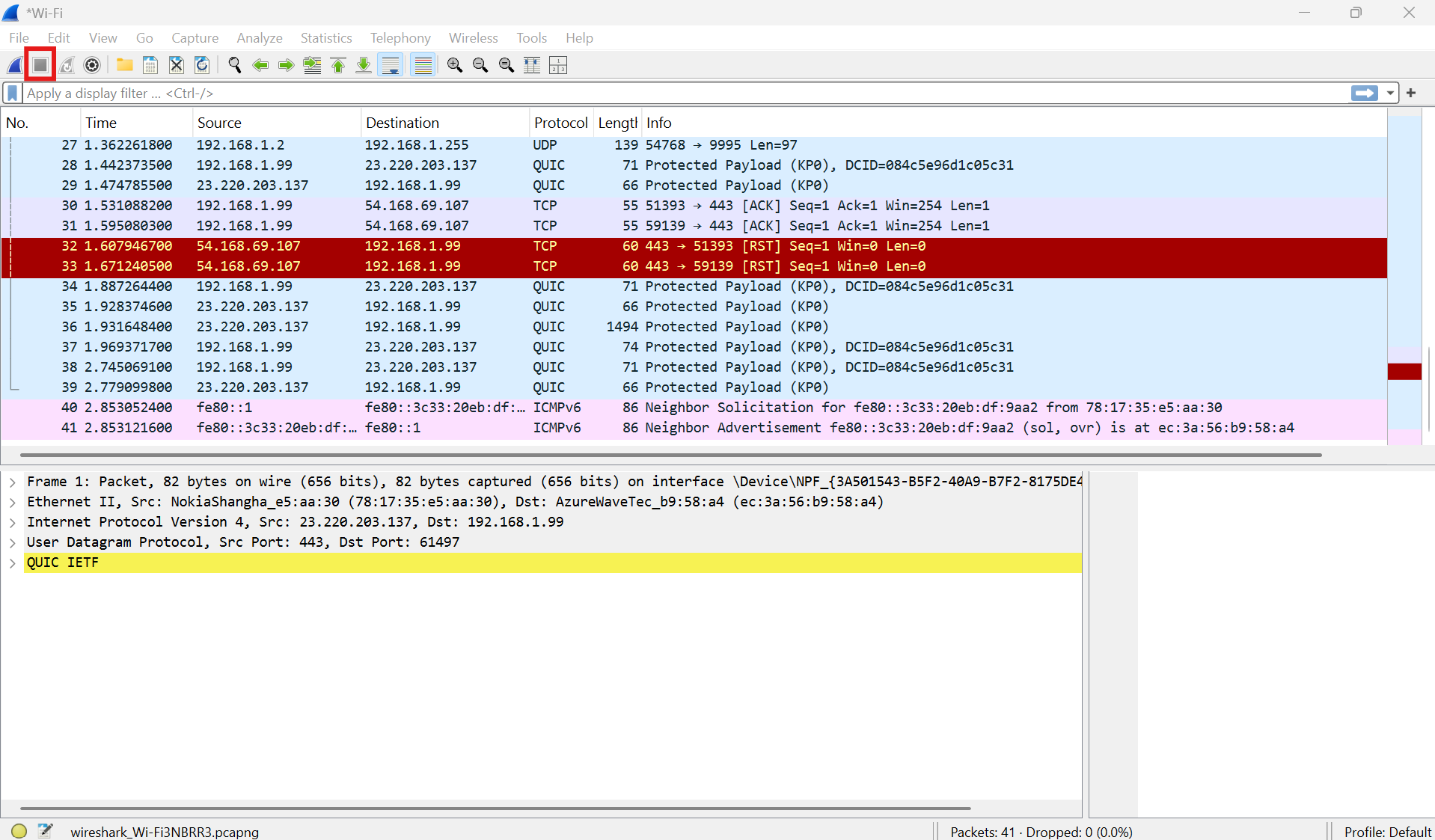
Wait until a sufficient number of packets has been captured. Click the red square icon on the top left to stop packet capture.
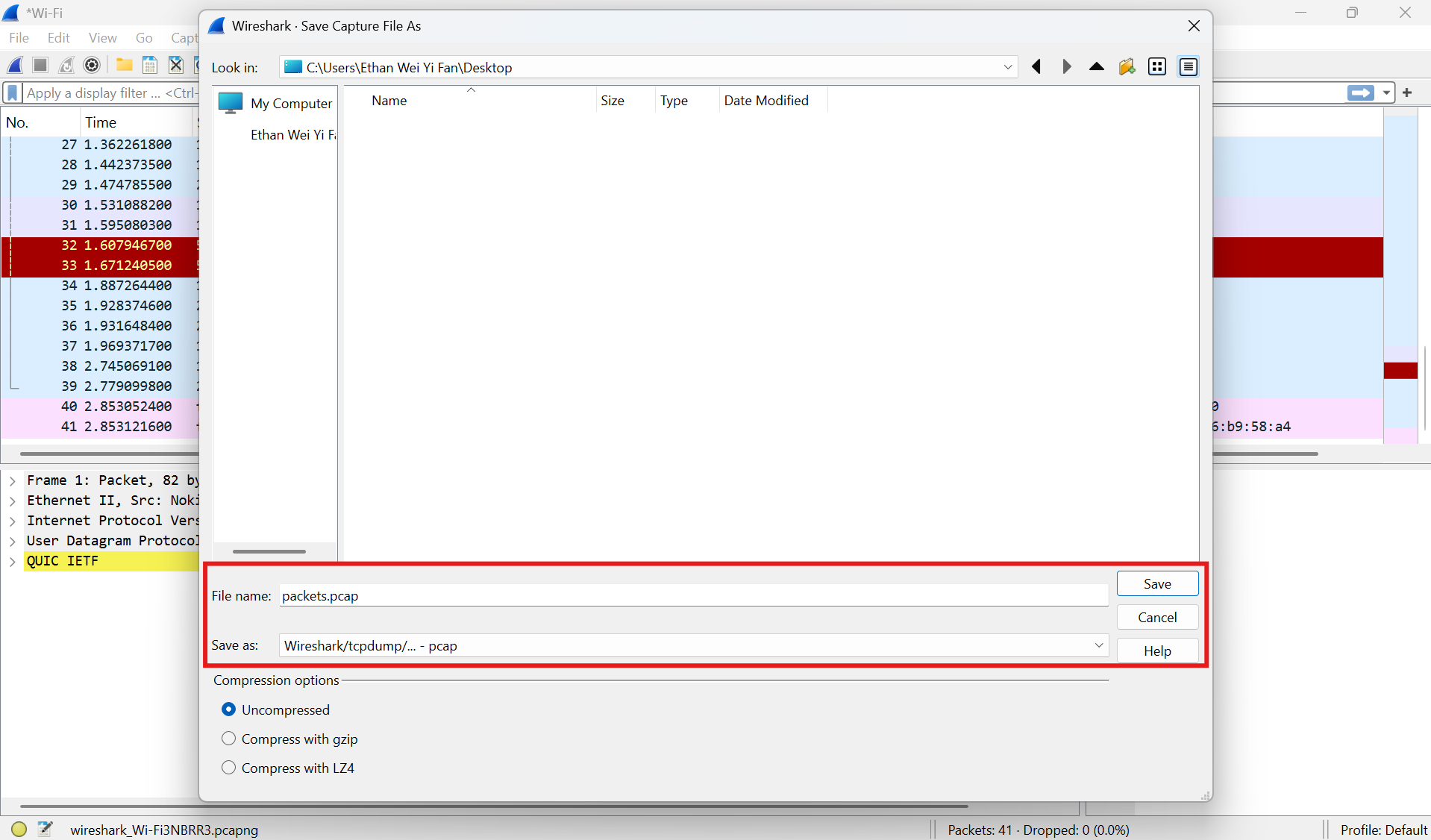
Select
Save as: Wireshark/tcpdump/... - pcap, enter a file name, and clickSave.
Wireshark: Capture network traffic in pcapng format
Wireshark provides a convenient way to capture network traffic and export it in PCAPNG format for further analysis.
To capture network traffic in PCAPNG using Wireshark:
Identify the network interface card (NIC) on which network traffic will be captured. Select it and click the fin icon on the top left to start packet capture.
Wait until a sufficient number of packets has been captured. Click the red square icon on the top left to stop packet capture.
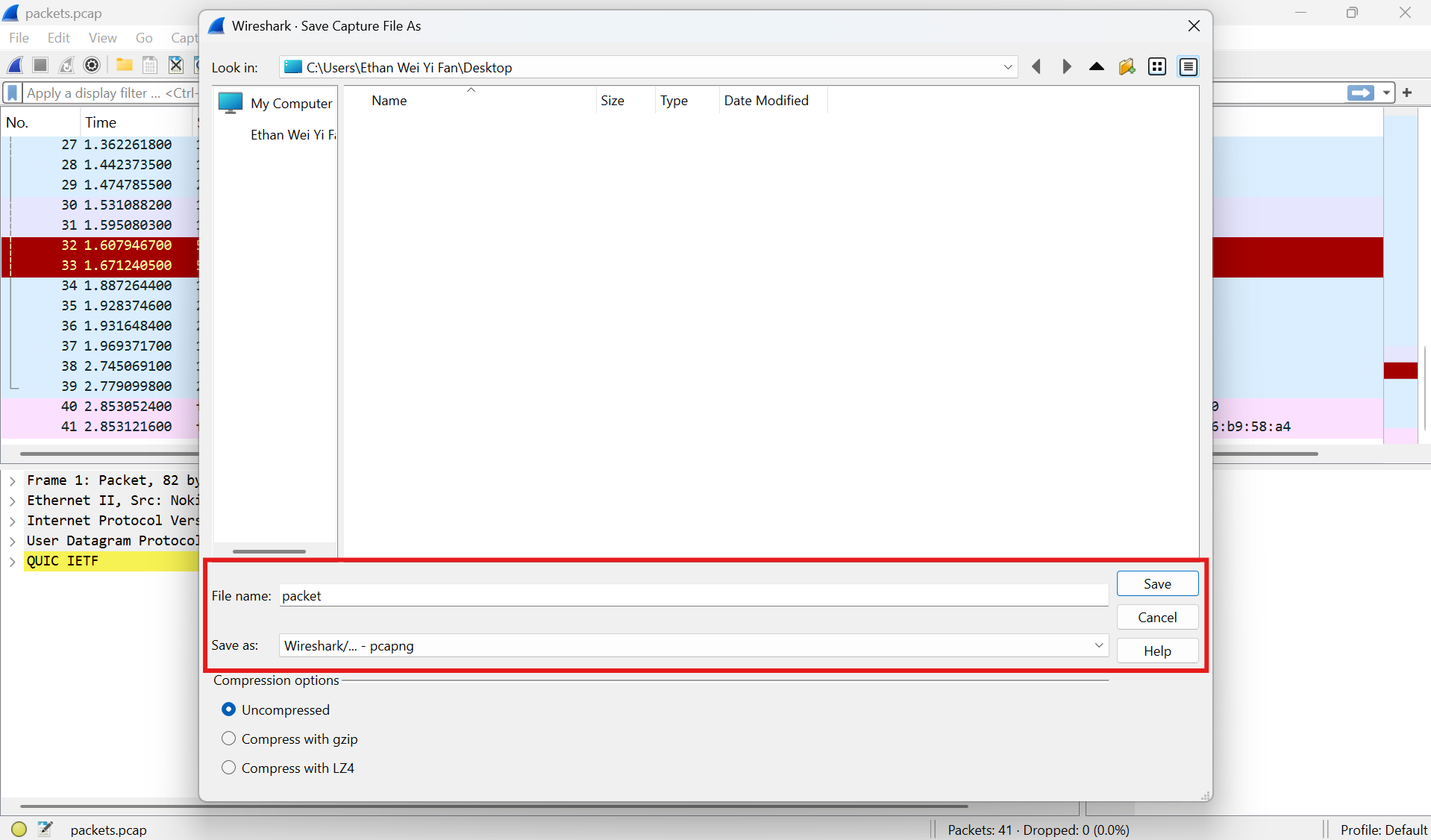
Select
Save as: Wireshark/... - pcapng, enter a file name, and clickSave.
tcpdump: Capture network traffic in pcap format
tcpdump is a CLI tool useful for capturing network traffic on headless Linux devices, such as Ubuntu Server environments, and can also be used in shell scripts for automated packet capture workflows.
To capture network traffic in PCAP using tcpdump:
Run the following command to identify the network interface card (NIC) on which network traffic will be captured.
ip addrRun the following command to begin a basic packet capture. Replace
your_nicwith the NIC from which traffic is captured. For additional packet capture configuration options, refer to the official tcpdump manual.sudo tcpdump -i your_nic -s 0 -w packets.pcapWait until a sufficient number of packets has been captured. Press
Ctrl + Cto end network traffic capture.
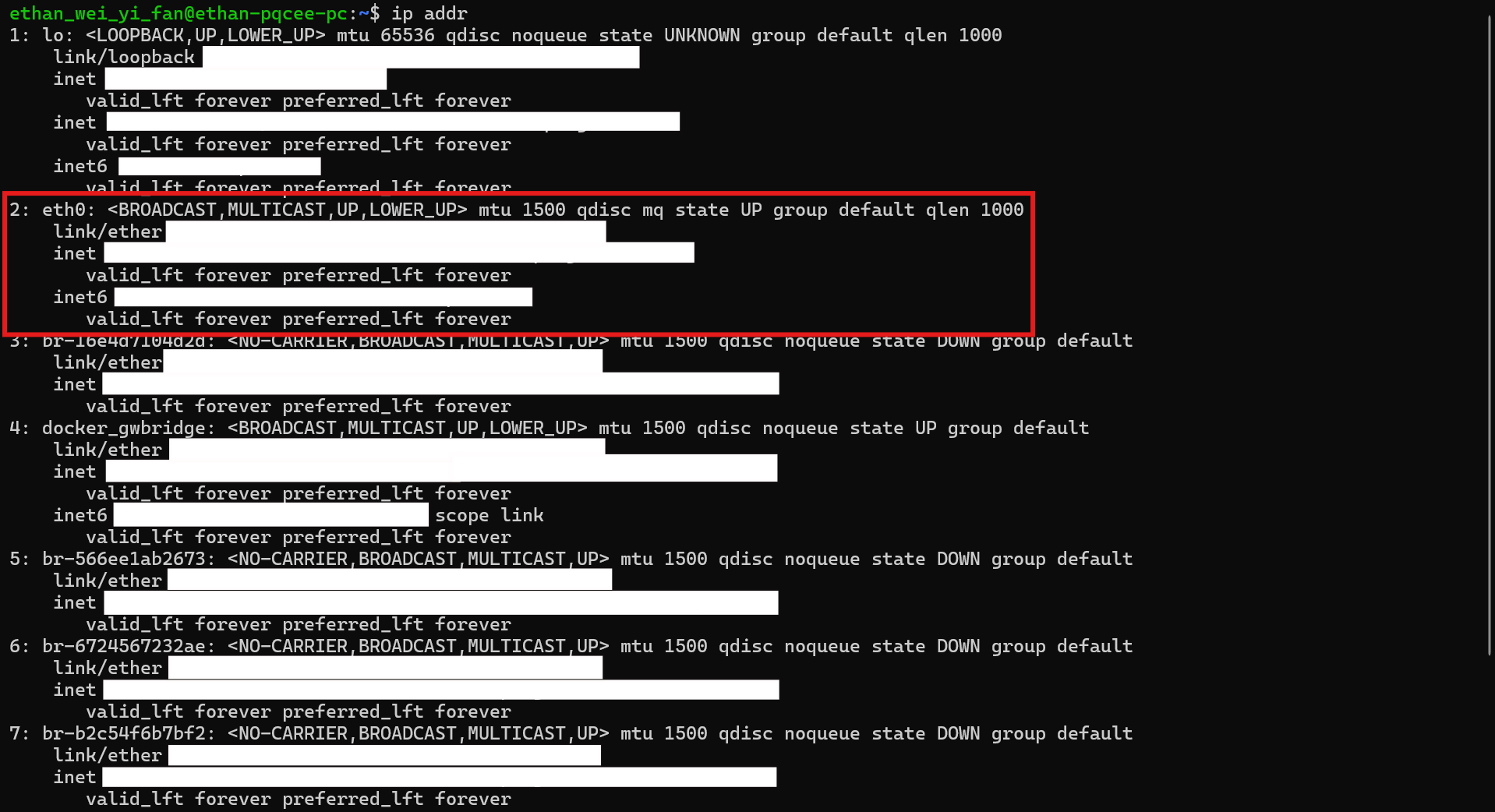
Fig. 18 Finding your NIC
tshark: Capture network traffic in pcapng format
tShark is a terminal oriented version of Wireshark useful for capturing network traffic on headless Linux devices, such as Ubuntu Server environments, and can also be used in shell scripts for automated packet capture workflows.
To capture network traffic in PCAPNG using tcpdump:
Run the following command to identify the network interface card (NIC) on which network traffic will be captured.
ip addrRun the following command to begin a basic packet capture. Replace
your_nicwith the NIC from which traffic is captured. For additional packet capture configuration options, refer to the official tshark manual.sudo tshark -i your_nic -w /tmp/packets.pcapngWait until a sufficient number of packets has been captured. Press
Ctrl + Cto end network traffic capture.
Fig. 19 Finding your NIC