Setup
This section covers the installation and setup required for PacketQC.
In This Section
1. Installation on a Single Device
This section provides instructions for installing, configuring, and managing PacketQC on a single Windows or Linux device using Docker containers.
1.1. Overview
This deployment runs all PacketQC components on a single device and is suitable for on-premises environments. The system consists of a frontend user interface, a backend processing engine, and a PostgreSQL database, all operating within the same local deployment environment.
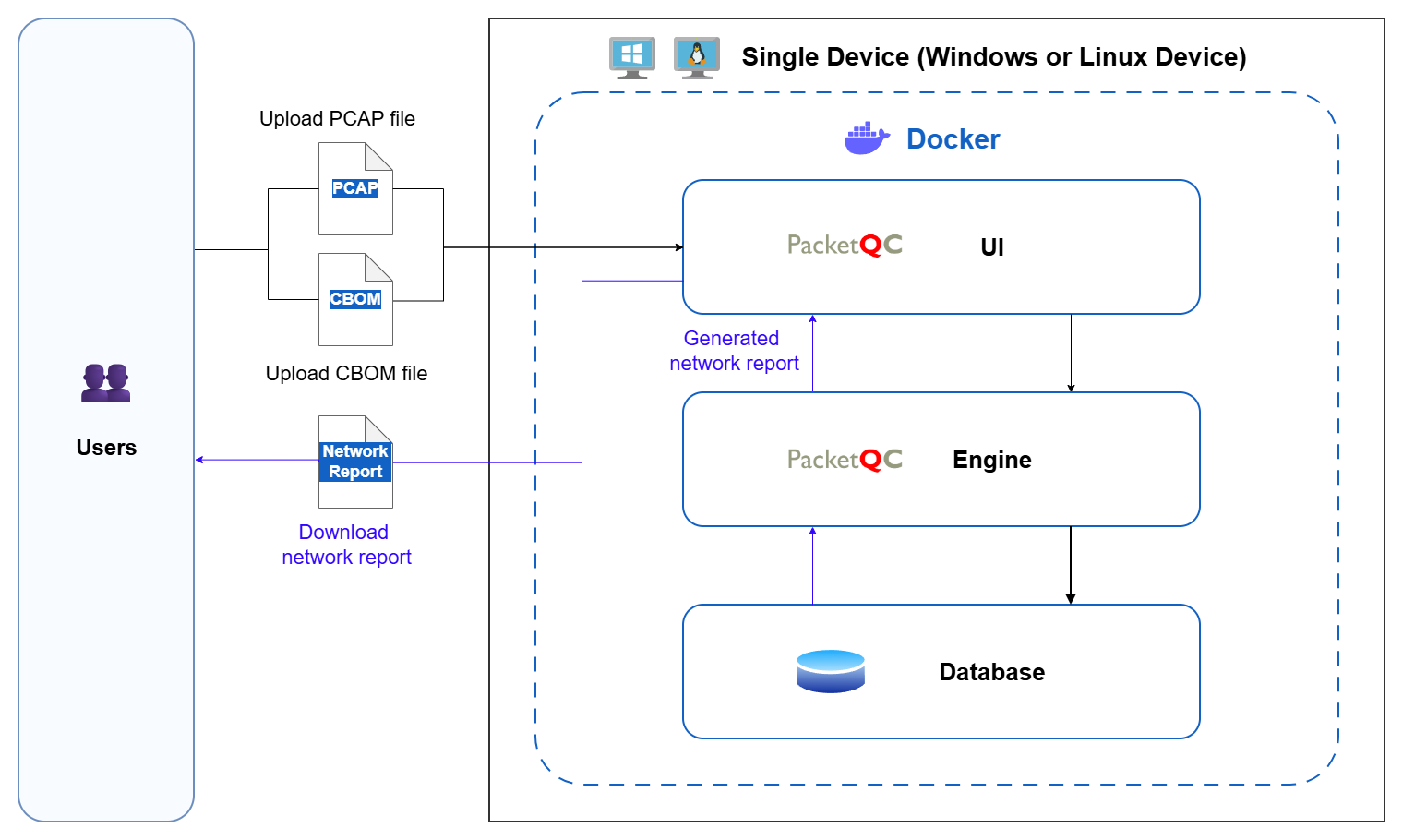
Fig. 1 On prem single device setup for PacketQC
To ensure stable and reliable operation, the host device must have sufficient compute, memory, storage, and network resources to support all three containers concurrently.
Key considerations
CPU: The host machine should be provisioned with adequate CPU capacity to support backend processing workloads, especially when handling large PCAP files or multiple analysis requests.
RAM: Sufficient memory must be available for Docker, the backend engine, the database, and the operating system to operate without resource contention.
Storage: Storage capacity should also be planned carefully, as uploaded PCAP files, CBOM files, generated reports, database records, logs, and Docker volumes may grow over time depending on usage frequency and file size.
Security: The device should be placed in a controlled on-premises environment with appropriate access restrictions.
1.2. System recommendations
Component |
Recommendations |
|---|---|
Web Browser |
Preferably the latest versions of Google Chrome, Mozilla Firefox or Microsoft Edge |
PostgreSQL |
Version 18 or above |
Docker Engine |
Version 29 or above |
CPU |
3 cores |
RAM |
4GB |
Storage |
2GB for Docker images, with additional storage allocated for the PostgreSQL persistent volume |
1.3. Installation: Download and prepare setup files
Installation files are provided for deploying the PacketQC UI, Engine, and PostgreSQL database on a single device using Docker Compose.
Please ensure that you have obtained the following files before proceeding with the installation. If you have not received them, kindly contact us at info@pqcee.com to request the necessary files.
linux folder
install-start.sh
stop.sh
uninstall.sh
windows folder
install-start.bat
stop.bat
uninstall.bat
.env.example
docker-compose.yml
1.4. Installation: Install PacketQC
Note
Before You Begin
If you are using Windows, ensure that a Docker-compatible container runtime, such as Docker Desktop, is running before proceeding with the installation.
If you are using Linux, ensure that Docker Engine is installed and running, and that Docker Compose is available before proceeding with the installation.
Follow the steps below to install PacketQC.
Run the appropriate installation script to begin installation.
Windows: install-start.bat
Linux: install-start.sh
When prompted, enter the following credentials:
Azure token username: Enter the username provided by pQCee.
Azure token password: Enter the password provided by pQCee.
PostgreSQL password: Create a password for the PostgreSQL database and keep it secure.
Wait for the installation to complete. PacketQC will start automatically once the installation is successful.
1.5. Installation: Access PacketQC
Once PacketQC is running, access the following URL in any web browser:
http://localhost:80
1.6. Managing PacketQC: Starting PacketQC
PacketQC can be started or stopped at any time.
Run the appropriate start script to start PacketQC.
Windows: install-start.bat.
Linux: install-start.sh.
1.7. Managing PacketQC: Stopping PacketQC
PacketQC can be started or stopped at any time.
Run the appropriate stop script to stop PacketQC.
Windows: stop.bat.
Linux: stop.sh.
1.8. Managing PacketQC: Uninstalling PacketQC
Note
Before you begin
PacketQC must be stopped before it can be uninstalled.
To uninstall PacketQC, follow the steps below:
Run the appropriate uninstall script to uninstall PacketQC.
Windows: uninstall.bat.
Linux: uninstall.sh.
During uninstallation, you will be prompted to confirm whether to remove the following:
Docker Secrets: Stored credentials, such as the PostgreSQL password.
Docker Images: PacketQC images stored locally on the host system.
Docker Volumes: PostgreSQL database used by PacketQC.
.env File: Application configuration settings.